A hangtag artwork system: from Excel product data to proofs and exports
Bring product data into a fixed layout, check text and barcodes for each item, then export proofs and individual artwork. Follow the work of order coordinators, artwork operators and proofreaders.
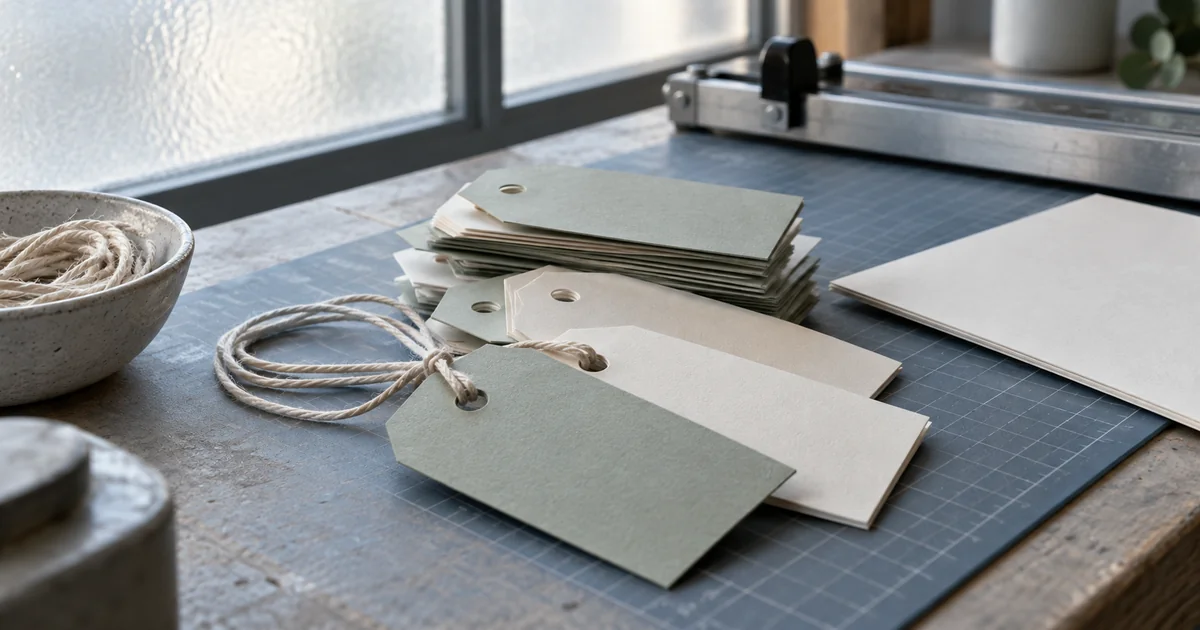
A batch of products shares one hangtag design, but each item has a different name, material, variant and barcode. Copying the design and replacing each field creates repeated checking work. An artwork system can read Excel product data and generate each item using agreed layout rules, leaving staff to check content and printing details.
This guide follows product hangtag preparation: order coordinators organize the data, artwork operators import and adjust it, proofreaders check both sides, and the team exports a proof PDF or vector artwork for further design work. Separating data from layout is also the basis of Adobe InDesign Data Merge. A custom system can turn the required fields and checks into screens used in daily work.
Adobe InDesign — Data merging overview
Turn Excel into a product list that staff can check
The order coordinator prepares one row per product, with fields such as name, variant, material, size description, price and barcode. After reading the selected worksheet, the system should show the recognized fields, item count and missing values so staff can review the import before generating artwork. Treat barcodes and variant codes as text to preserve leading zeros.
Give clear feedback for unfamiliar column names, empty rows or an invalid file. A failed import should preserve the work already open. If the spreadsheet contains formulas, explain whether the system reads saved results or recalculates them; a visible number alone does not prove that it is current.
Keep the design fixed while product content changes
An artwork operator can search and switch between products while viewing the data fields and artwork preview. The agreed shared design stays in place, while product content fills designated text and barcode areas. Updating a material description should update the preview immediately, exposing problems with wrapping, spacing or overflow.
This approach suits work with a stable layout and frequently changing content. A first version can support one agreed template. Free-form design, multiple-template management and importing arbitrary design files need separate scope. Previewing artwork does not establish a full design editor.
Show the error and stop an invalid export
Missing required content, an invalid EAN-13 check digit, an unsupported glyph or text outside the printable area should identify the affected product and field. The operator corrects the value and checks again before export is enabled. Define which fields may be blank for the actual template.
A valid barcode number completes only the data check. Scanning after printing also depends on symbol size, quiet zones, contrast and the printed result. GS1 distinguishes artwork checks from verification of final printed samples. A barcode visible on screen does not replace checking the physical output.
Check both sides of every product proof
Proofreaders need a close view of one product and an overview of the whole batch. If the front uses a shared design and the back carries product data, show them together to check the pairing. Visible dimensions, page order and variant information help reveal missing items, duplicates or inconsistent front-and-back ordering.
A proof PDF can place several items on ordinary paper for review; individual artwork is exported at the required dimensions. Label those choices clearly so a review sheet is not mistaken for production artwork. Open the downloaded file to check that edits, Chinese text rendering and front-and-back order match the preview.
Choose the output for the next person’s work
PDF supports proof circulation and handover at specified dimensions. SVG can retain vectors and text for further work in compatible design software, with a batch packaged for download. Check fonts and layout in both formats, and explain whether SVG text remains editable and which fonts the receiving colleague needs.
If production requires native Illustrator files, die lines, bleed, spot colours or specific colour settings, confirm each output capability and have prepress staff review it. SVG is not native .ai. Placing an image in a PDF does not turn it into vector artwork. Prepress still has work to do after artwork generation.
Decide who checks and saves a revision
For a fictional batch of cotton storage bags, a material description changes. The order coordinator updates the data, the artwork operator checks the layout, and the proofreader rechecks the affected items before a new export. Even with manual handovers in a first version, make clear which data and artwork revision has been confirmed so the next person receives the right version.
Browser-based preparation can start with local import, preview and download. Explain whether data is uploaded and whether it survives a page refresh. Shared work, online customer approval, revision history, permissions and long-term storage can be added when needed; exporting artwork does not automatically provide those collaboration features.
Take a test batch all the way through artwork preparation
ProApp offers a Demo before payment. For an artwork system, prepare fresh neutral product data and a template without client branding, then let order coordinators, artwork operators and proofreaders try their own steps. Check whether they can finish the work and whether the downloaded artwork meets the agreed format.
Import a batch and inspect the list and fields. Lengthen one description to test wrapping and overflow feedback. Add a record with missing required data or an invalid barcode and check that the system locates the error and blocks export. After correction, compare the individual and batch previews of both sides. Download the proof PDF and agreed vector output, then have the next colleague open and check them. This sequence shows how the preparation work holds together.